| Version 1 (modified by , 7 months ago) ( diff ) |
|---|
- Instructor Dashboard Overview
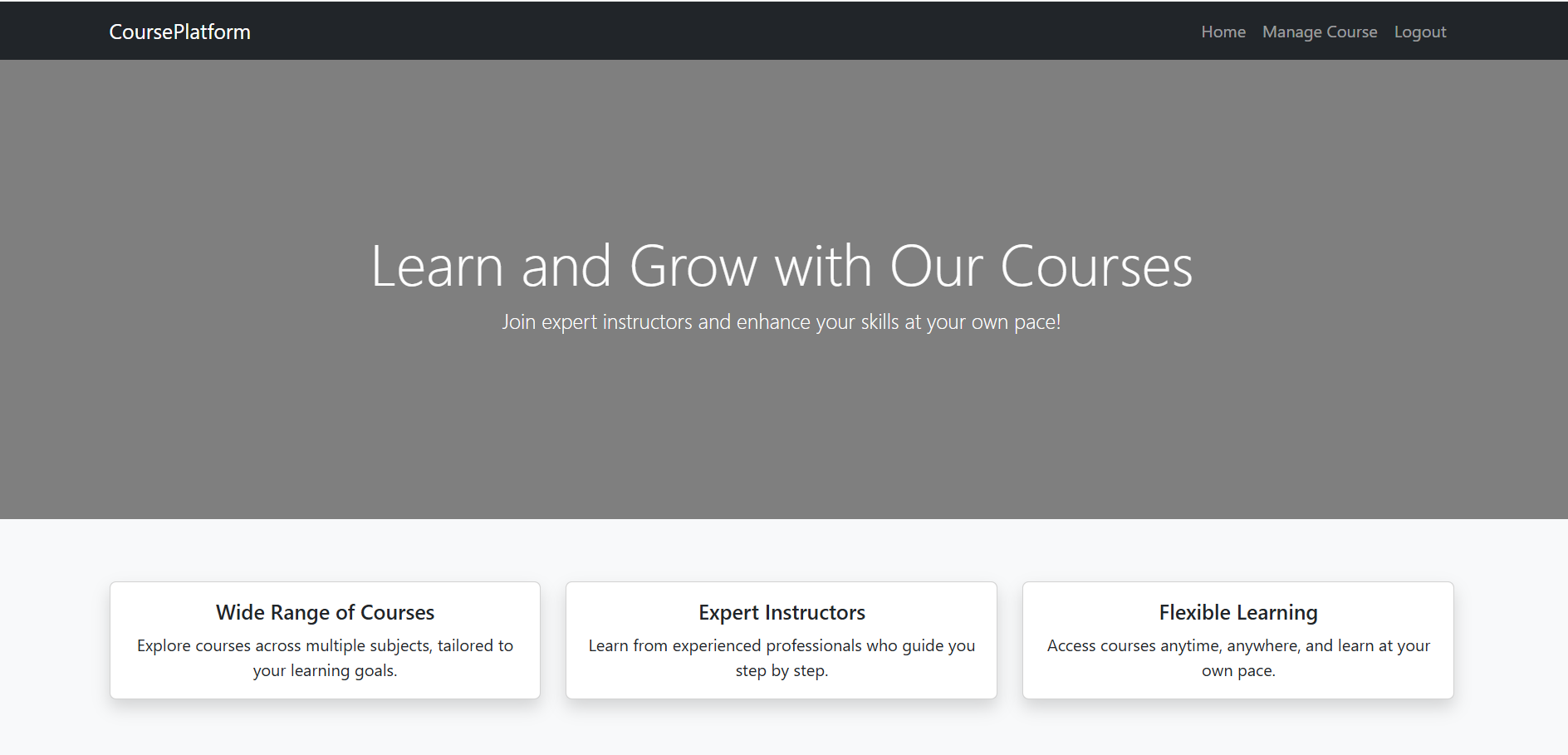
When logged in as an Instructor, a dedicated instructor dashboard becomes available.
From the navigation bar, the instructor gains access to functionality related to course management.

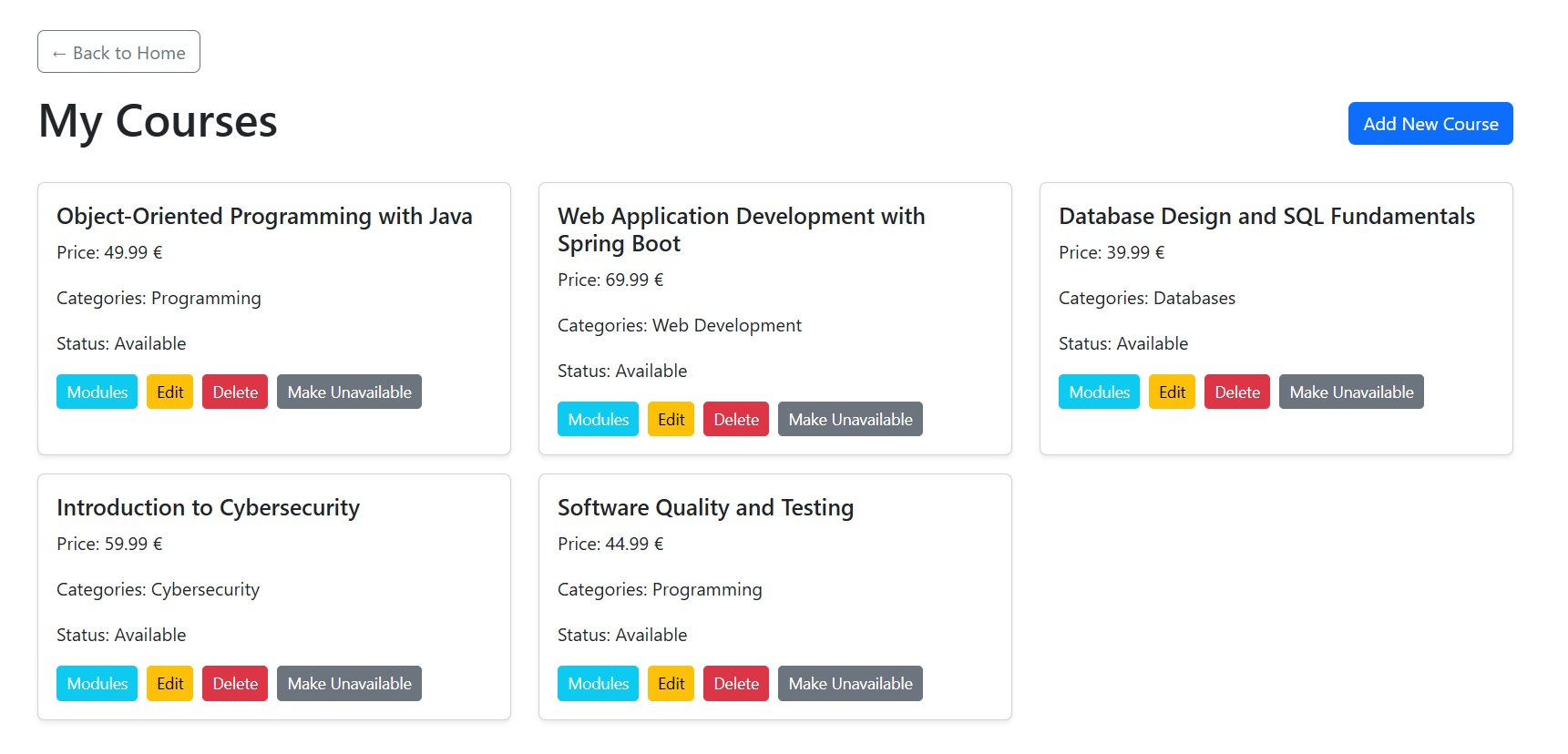
- By selecting Manage Course from the navigation menu, the instructor is redirected to the My Courses page.
This page displays a list of all courses created by the instructor.
For each course, the following information is shown: Course name, Price, Assigned category, Current status (Available / Unavailable)
- Also for every course, the instructor can perform the following actions: Modules – manage course modules and lesson structure
Edit – update course details such as name, price, or category
Delete – permanently remove the course from the platform
Make Unavailable – temporarily disable the course so it is not visible to users
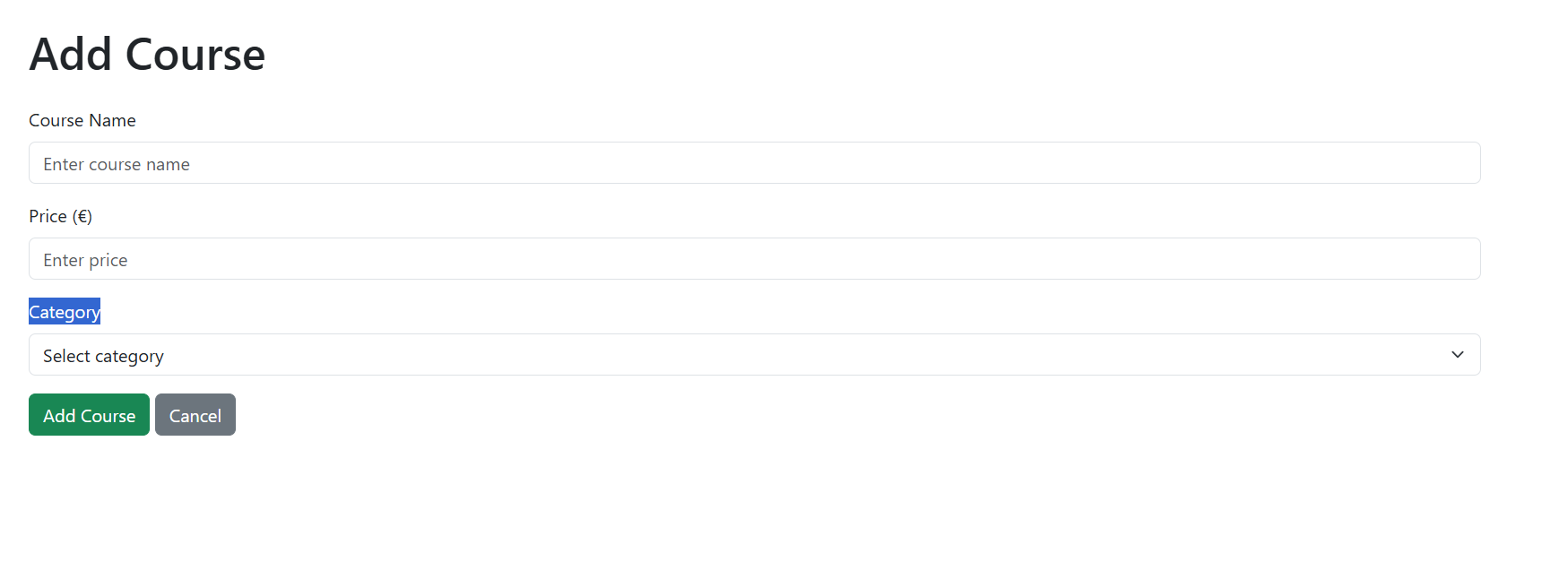
- Adding a New Course. In the top-right corner of the Manage Course page, the “Add New Course” button is available.
When clicked: A form is displayed for adding a New Couse. The instructor must enter: Course Name, Price, Category.
After submitting the form, the Course is saved in the database and immediately appears in the available courses list.
Attachments (3)
- InsMange.PNG (78.6 KB ) - added by 7 months ago.
- InsAdd.PNG (24.4 KB ) - added by 7 months ago.
- InsPage.PNG (63.7 KB ) - added by 7 months ago.
Download all attachments as: .zip
Note:
See TracWiki
for help on using the wiki.